

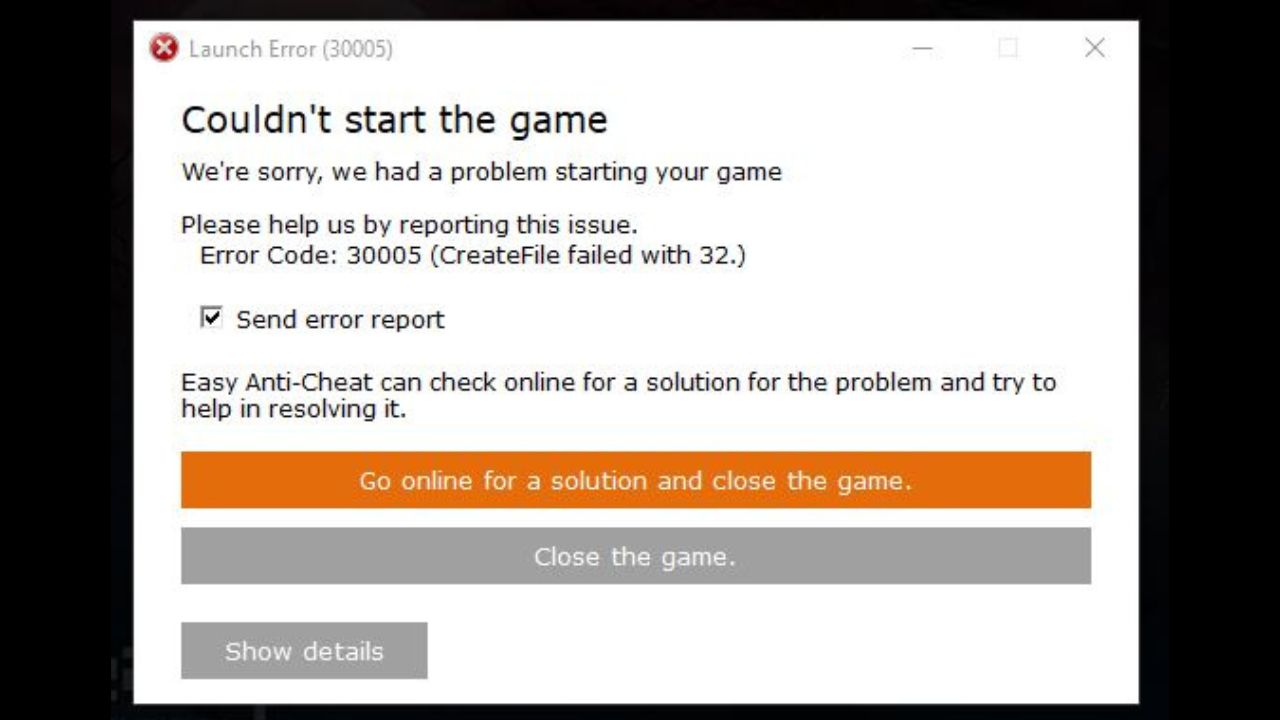
Have you ever been in the middle of an adrenaline-pumping match in Apex Legends or Fortnite only to be hit by Error 30005? It’s like trying to start your car in the morning and hearing nothing but a sputter—definitely not the kind of excitement you’re looking for, right? Well, you’re not alone! This pesky error is a common guest, uninvited of course, in the world of Easy Anti-Cheat (EAC) games such as Rust and Crossout too. So, why does this occur, and how can we send it packing? Buckle up as we navigate through this digital glitch and reclaim your awesome gaming time!
Understanding Error 30005 in Easy Anti-Cheat Games
Here’s the thing: Error 30005 comes up when the EAC, that digital bouncer ensuring fair play in your favorite games, stumbles on a bump. Imagine the EAC is your trusty guard at the game entrance, but sometimes, the guard’s gear gets all messed up thanks to a conflict with a corrupt file or a cheeky little Windows update. It’s usually the EasyAntiCheat.sys file getting its wires crossed, or a new Windows update (hello, KB5044376!) nudging it a bit off track.
This glitch can stop you from diving into your game, and let’s face it—nobody wants that. It’s like standing in line for a roller coaster only to find out it’s temporarily closed. But don’t worry, we’ve got the blueprint to fix this!
Spotting the Source of Error 30005
First on the lineup is the corrupted EAC driver file. It’s basically the EasyAntiCheat.sys prefile—the VIP pass needed to pass through EAC’s security gates. When this file throws a fit, your gateway to gaming gets stalled. But hey, don’t let a tantrum stop you.
Also, certain Windows updates, especially KB5044376 for Windows 11 users, can pull the rug out from under the EAC’s feet, causing it to stumble. Think of it as if Windows and EAC are competing DJs on different beats—not a harmonious tune!
Let’s not forget about the fight club between your security software and EAC. Your antivirus and Windows Defender sometimes play the role of the overzealous guards, thinking EAC is the bad guy, and block it. Permissions and service hiccups also like to get mixed into this chaotic blend, making sure EAC has more hoops to jump through than a circus act!
Steps to Vanquish Error 30005
Don’t worry, you don’t need a magic wand—just follow these steps, and Error 30005 will be ancient history!
1. Rebuild the EAC Driver File
Your first mission, if you choose to accept it, is to let EAC start fresh. Head over to:
`C:\Program Files (x86)\EasyAntiCheat` (or wherever your game’s EAC folder is hanging out).
Toss that EasyAntiCheat.sys file into the recycle bin; sometimes, it needs a timeout.
Fire up the game; EAC will rebuild that file like nothing ever happened.
2. Repair or Reinstall EAC
Next, it’s time to refresh the EAC service itself:
In the EAC folder, look for `EasyAntiCheat_Setup.exe`.
Run it as an admin (you’re the boss now!) and either repair or reinstall the service.
Don’t forget to verify your game files through Steam/Epic or your game launcher.
3. Manage the EAC Service
Think of this step as giving your service the spa treatment:
Open up “Services” in Windows.
Find “Easy Anti-Cheat,” and give it a nice restart. Set it to Automatic like a reliable barista who knows your favorite coffee by heart!
4. Cease the Security Clashes
Security software causing drama? It’s time for them to take five:
Temporarily disable your antivirus or Windows Defender.
Don’t forget about Memory Integrity in Windows Security—it needs a quick breather too.
Run all game and EAC files as an admin to keep things orderly and professional.
5. Deal with Driver Signing Issues
If you encounter issues involving the driver code signing, here’s the workaround:
Enter the Windows Recovery Environment (RE).
Head to Troubleshoot > Advanced > Startup Settings.
Disable Driver Signature Enforcement and see if that straightens things out.
Advanced Tricks and Techniques!
Alright, if you’re still seeing Error 30005 popping up like a surprise party guest, let’s get a bit more hands-on:
Perform a clean boot. This method is like turning off all the bedazzling lights at a party to find the pesky guest causing trouble.
Try creating a new local admin account to test if the issue persists.
If all else fails, consider rolling back those pesky updates that might have thrown EAC off balance.
And if you’re still facing the wall, an in-place Windows upgrade might be the fresh start EAC needs.
Getting Extra Help
If you still find yourself snarled in Error 30005’s chaotic web—don’t lose heart! Game support gurus, like those at EA or Fatshark, are just an email away. They can help you troubleshoot this sticky situation.
While you’re at it, make sure to test fixes one game at a time. It’s like checking each string of holiday lights to find the one that’s burnt out! Remember, patience and persistence are your best allies here.
For more ways to navigate through gaming challenges and tech fixes, you might find additional resources that could be useful. Check out this site for tips on tech and gaming advancements.
So, there you have it! When Error 30005 tries to stand in your way, you now possess the know-how to dive back into the gaming adventures that await. Happy gaming!
Also Read:
